

Subscription Orders
The Bound Tree subscription program provides the convenience of automatically repurchasing products on a schedule you control – weekly (for up to 12 weeks) or monthly. To qualify for the subscription program, you must meet the following criteria:
• Register for a Bound Tree online account.
• Pay with net payment terms. Credit cards are not currently accepted for subscription orders. Click here to complete a credit application.
Note: Advanced customers (Admin/Manager/Approver) with net payment terms can set up and manage subscriptions. Subscription orders will be processed as regular orders and not purchase requests.
To create a subscription order:
1. Log in to www.boundtree.com
2. Go to My Account > Subscriptions
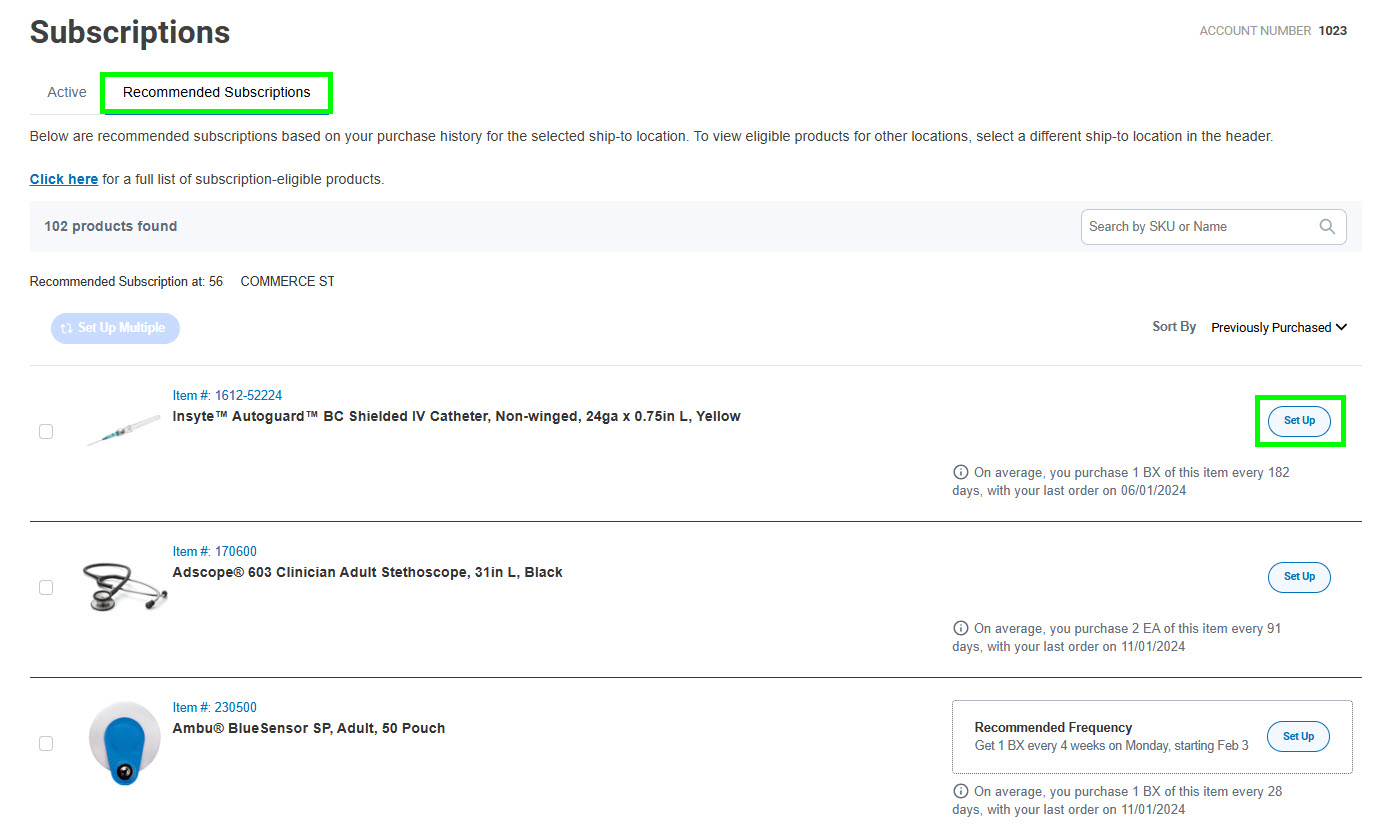
3. Click on the Recommended Subscriptions tab for a listing of eligible products
4. Click Set Up
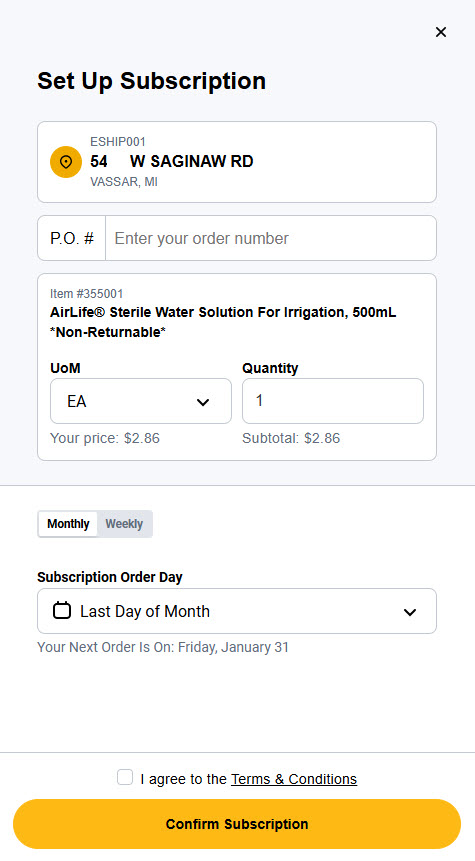
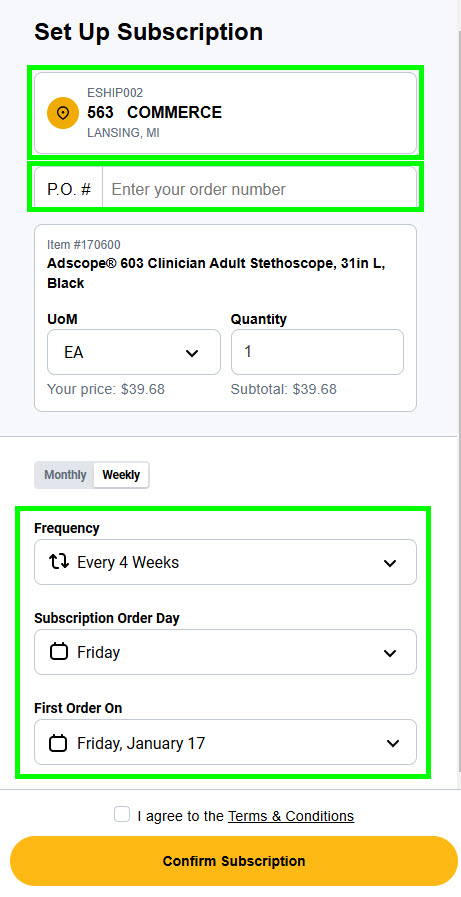
5. Validate the shipping address
6. Enter a PO number, if applicable
7. Choose the Unit of Measure (EA, BX, CS, etc.) and Quantity
8. Choose the order frequency:
a. Weekly: Select the day and frequency (in weeks)
b. Monthly: Select the day or a custom date
9. Read the Terms & Conditions and click to agree
10. Click Confirm Subscription
11. You’ll receive an email confirmation of your subscription order
You can also set up a new subscription as you navigate the website on the following pages:
• Product pages
• Supply List Details
• Quick Order
• Previously Ordered Items
To identify products eligible for subscription, they will be marked as Eligible for Subscription as shown below:
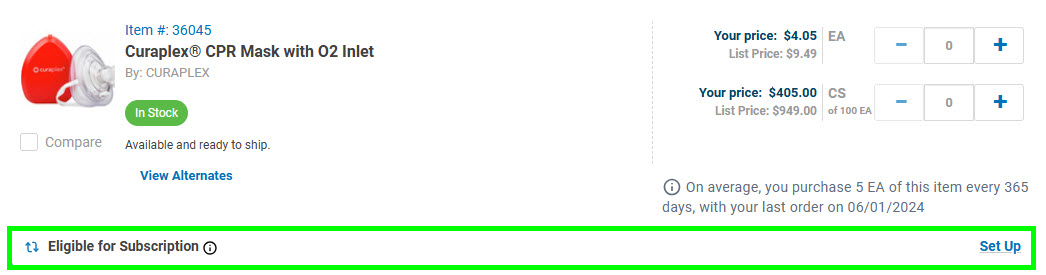
As you navigate the site, you’ll notice only individual products can be set up for subscription. If you don’t want to set up subscription orders, one at a time, utilize our multi-add feature to set up multiple products on subscription at one time.
To create a multi-product subscription order:
1. Log in to www.boundtree.com
2. Go to My Account > Subscriptions
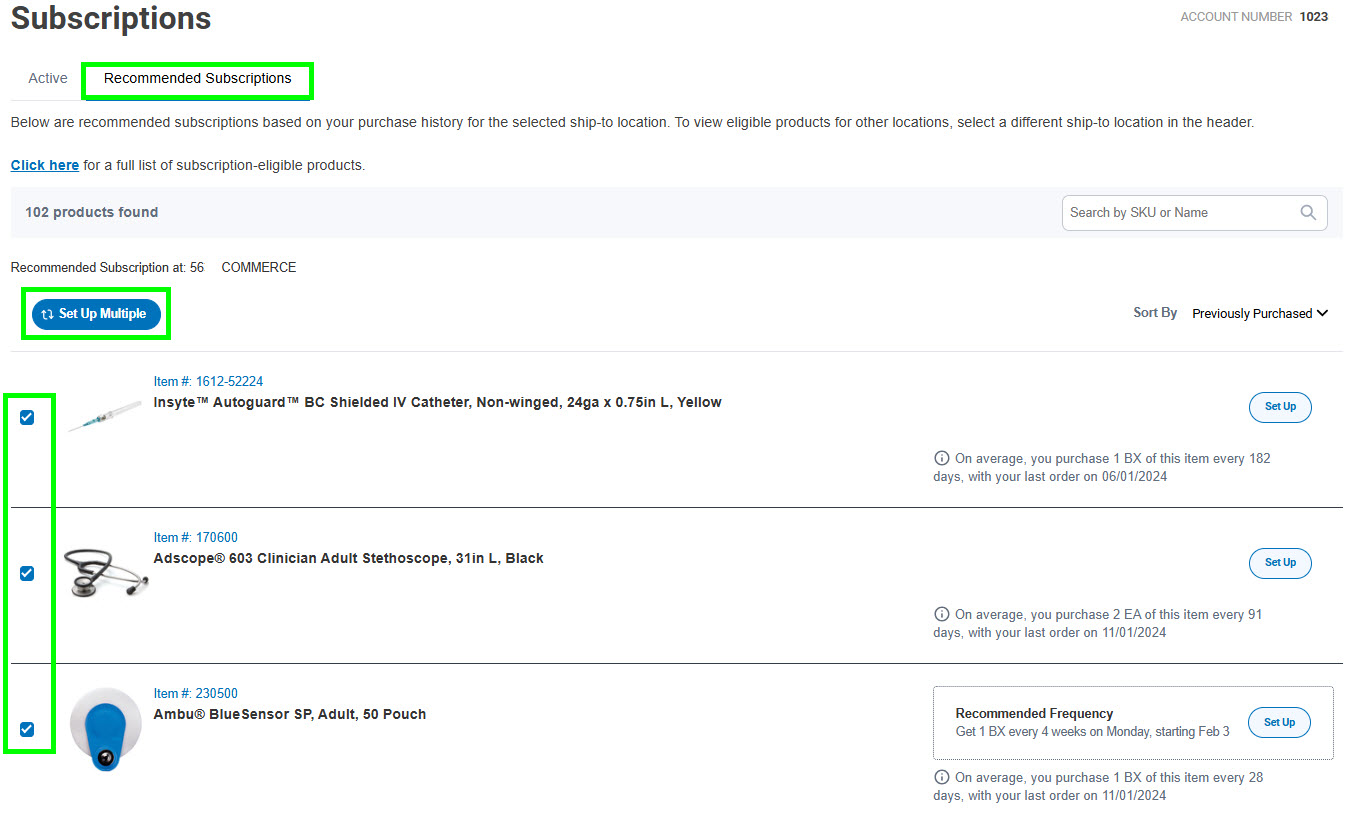
3. Click on the Recommended Subscriptions tab for a listing of eligible products
4. Once the page loads, click the checkboxes for each product you want to set up
5. Click on the blue Set Up Multiple button
6. A drawer will open, and you will be prompted to add the following information for each item you want to put on subscription:
a. Validate the shipping address
b. Enter a PO number, if applicable
c. Choose the Unit of Measure and Quantity
d. Choose the Order Frequency: Weekly or Monthly
e. Click to agree to the Terms & Conditions
f. Click Confirm Subscription
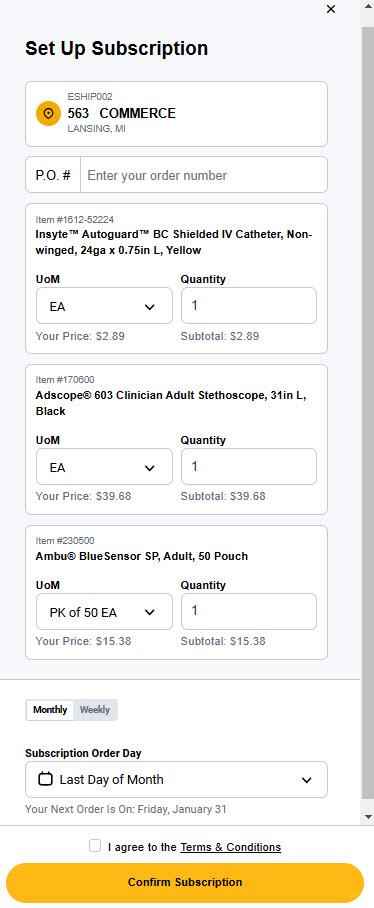
g. You’ll receive an email confirmation of your subscription order.
Once set up is complete, the subscription order can be found in the Active subscriptions tab.
To view active subscription orders:
1. Log in to www.boundtree.com
2. Go to My Account > Subscriptions
3. The Active tab will display your active subscription orders. You can view, modify, skip or cancel subscription orders.
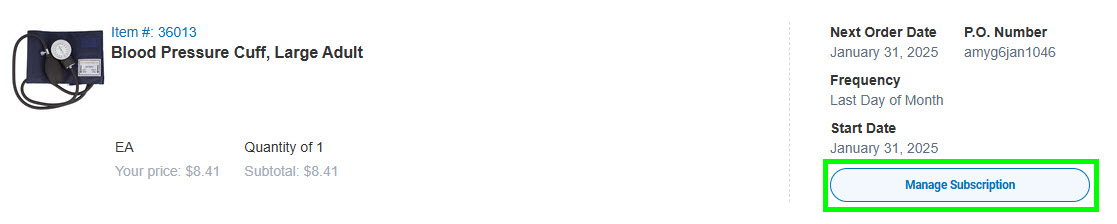
4. When you see a Manage Subscription button, that indicates that you can make changes to the subscription.
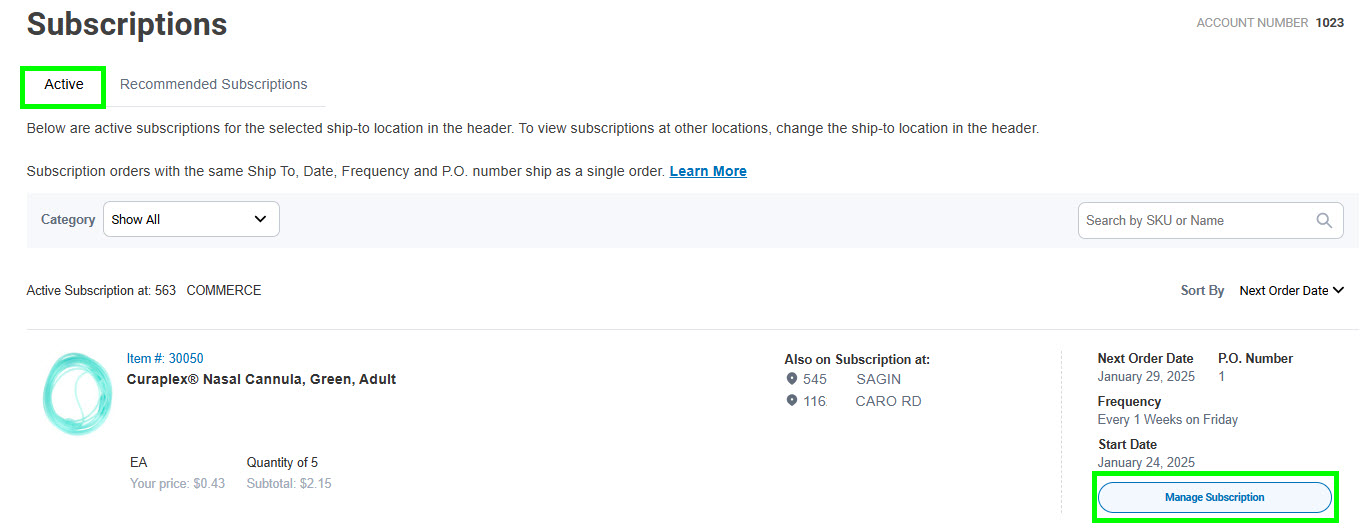
There will not be a Manage Subscription button if a subscription is not editable. This is either due to the change window being closed or the subscription was created by another user on the account.

You will be able to see all details related to the subscription displayed automatically for each product.
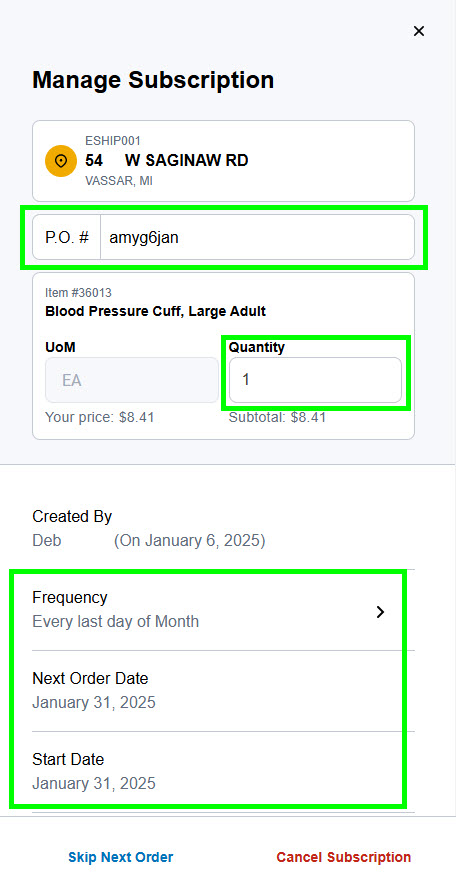
A subscription order can be updated up until 3 days prior to the next order date. You can make the following changes:
• Order Frequency: Weekly or Monthly
• PO Number
• Quantity
Note: To change a unit of measure, the subscription will need to be canceled, and a new subscription created with the new unit of measure.
To update a subscription order:
1. Log in to www.boundtree.com
2. Go to My Account > Subscriptions
3. Find the order you want to update in the Active tab
4. If the Manage Subscription button displays, you will be able to make changes
5. Click Manage Subscription and a drawer will open
6. Make the desired changes and click Save Changes button.
7. A confirmation message will load in the drawer and an email will be sent confirming the subscription has been updated.
You can also update a subscription as you navigate the website on the following pages and search for products with the Currently on Subscription indicator:
• Product pages
• Supply List Details
• Quick Order
• Previously Ordered Items

When setting up a subscription, if there are additional shipping addresses on your account you can add them to an order. After clicking Confirm Subscription, a confirmation message will load. You will see the option to Use this For More Locations.
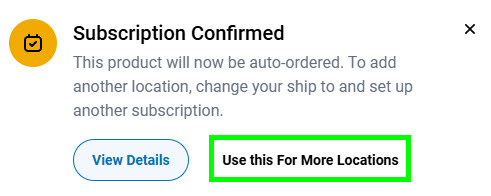
1. Click on Use this For More Locations to open the drawer.
2. Select the shipping addresses using the checkboxes.
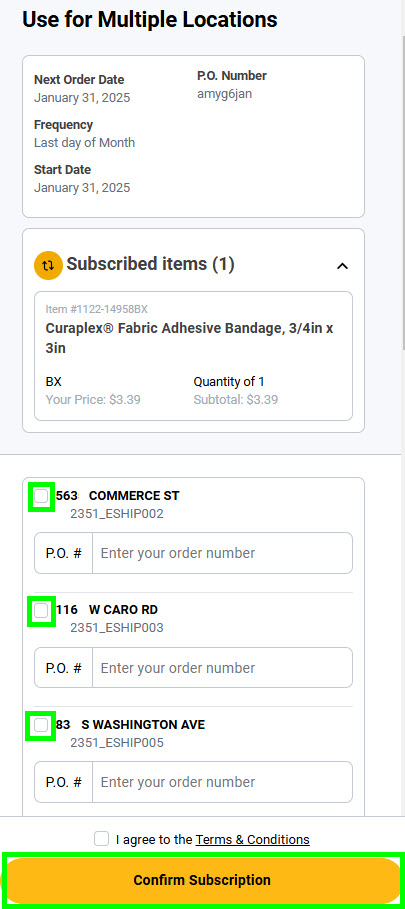
3. Agree to the Terms & Conditions and click Confirm Subscription.
4. A confirmation message will display, and a confirmation email will be sent confirming the selections.
Note: The subscription frequency, unit of measure, and ship date will be the same as the original subscription - only the P.O. Number can be different.
A subscription order can be skipped up until 3 days before the next order date.
To skip a subscription order:
1. Log in to www.boundtree.com
2. Go to My Account > Subscriptions
3. Find the order you’d like to skip in the Active tab
4. If the Manage Subscription button displays, click to open the drawer

5. Click Skip Next Order at the bottom of the drawer.
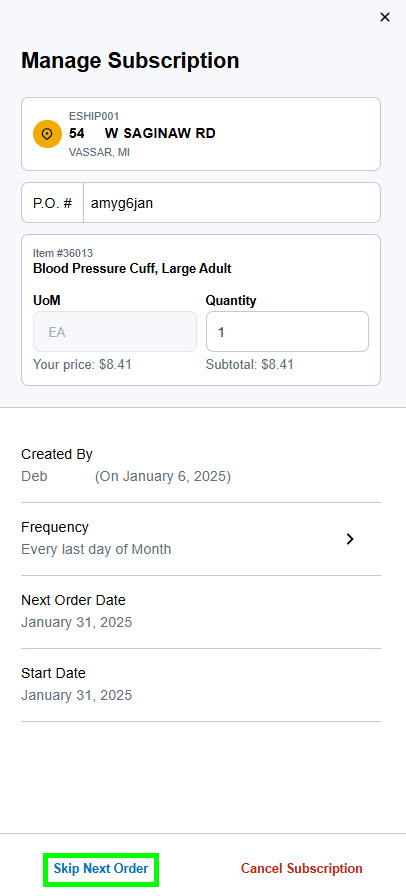
6. Confirm by clicking the blue Skip Next Order button.
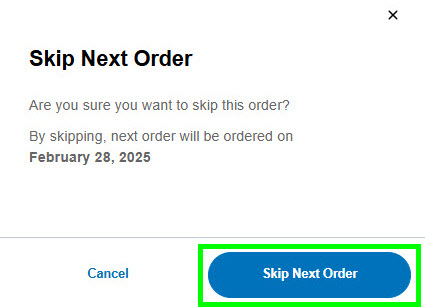
After skipping the subscription, a confirmation message will display, and you’ll receive an email with a new order date.
Note: You can only skip one subscription order at a time.
You can also skip a subscription as you navigate the website on the following pages and search for products with the Currently on Subscription indicator:
• Product pages
• Supply List Details
• Quick Order
• Previously Ordered Items
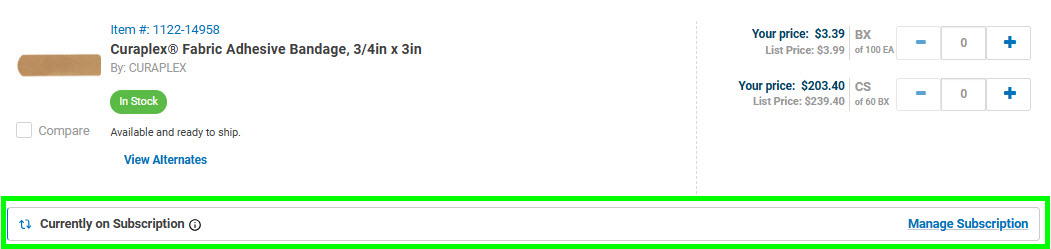
You can cancel a subscription up until 3 days before the next order date.
To cancel a subscription order:
1. Log in to www.boundtree.com
2. Go to My Account > Subscriptions
3. Find the order to cancel in the Active tab
4. If the Manage Subscription button displays, you will be able to cancel
5. Click Manage Subscription to open the drawer.

6. Click on Cancel Subscription at the bottom of the drawer
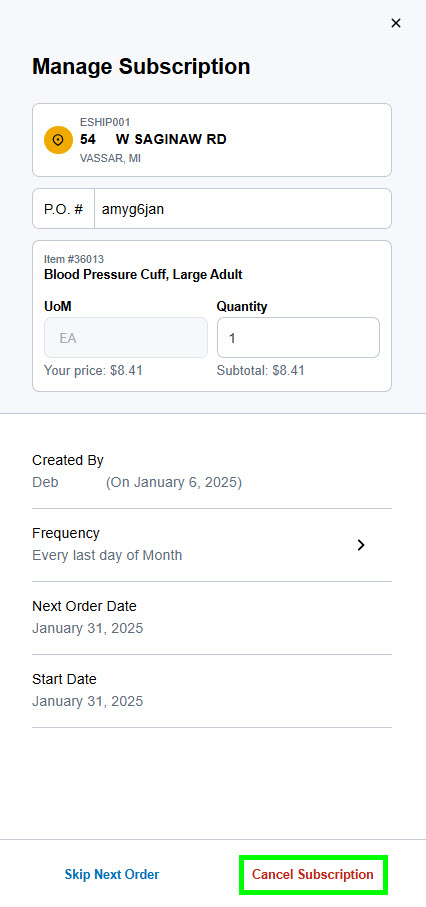
7. Confirm by clicking the Cancel Subscription button.
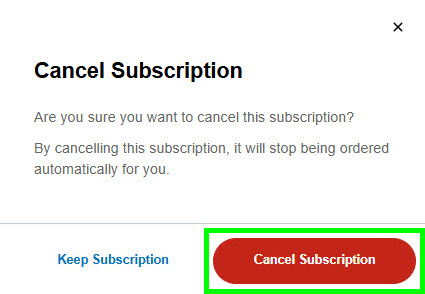
Once you’ve canceled the subscription, a confirmation will display, and an email will be sent confirming the subscription has been canceled.
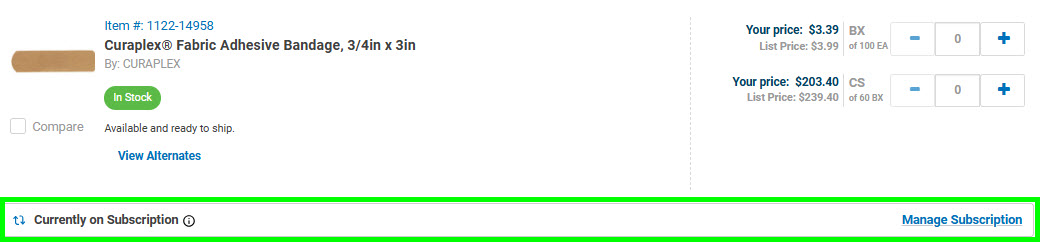
You can also cancel a subscription as you navigate the website on the following pages and search for products with the Currently on Subscription indicator:
• Product pages
• Supply List Details
• Quick Order
• Previously Ordered Items
Bound Tree groups subscription orders with the same ship to address, ship date and PO number to prevent multiple deliveries.
These orders will also get grouped together on the Order History page.
To identify subscription orders:
Utilize the SEARCH TERMS box, type subscriptions and click View Invoices.
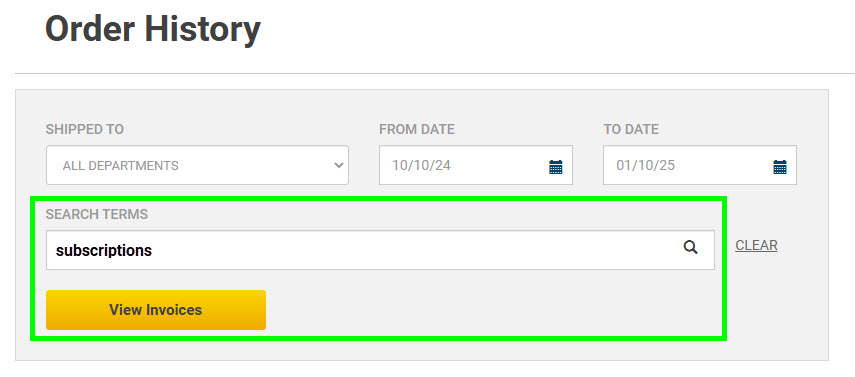
The results will display subscription orders that are being processed to ship and/or have been shipped/fulfilled.
Order History
Use the Order History page to search and track subscription orders that are being processed or have been shipped/fulfilled.
To identify subscription orders:
Utilize the SEARCH TERMS box, type subscriptions and click View Invoices.
The results will display subscription orders that are being processed to ship and/or have been shipped/fulfilled.
Backorders
To identify backordered subscription orders, search the Backorder Report page.
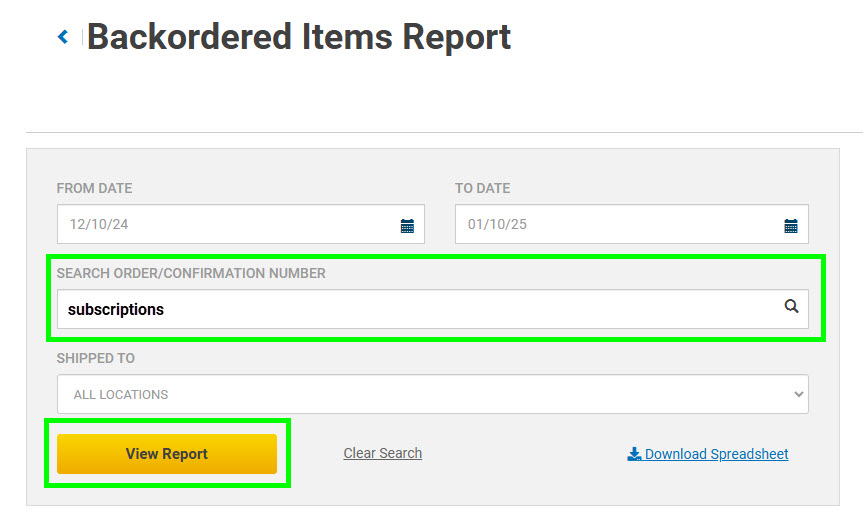
To identify subscription orders:
Utilize the SEARCH TERMS box, type subscriptions and click View Report.
The results will display subscription orders that are currently backordered.
Question: Why are there quantity limits on certain subscription products?
Answer: Some products are subject to monthly quantity limits due to manufacturer allocation. These limits help ensure fair distribution based on available inventory and your historical purchasing patterns.
Question: When do my quantity limits reset?
Answer: Your allocation resets on the 1st of each month. Once the new month begins, you can place new orders or continue subscriptions within your available limit.
Question: How does setting up a subscription for products on allocation work?
Answer: Some products may have monthly quantity limits due to manufacturer allocations. Your limit is based on your past purchasing and the inventory we receive from the supplier, and it resets on the 1st of each month. If you reach your monthly limit, you can set up a new subscription for that product once your limit refreshes at the start of the next month.
Question: Why was my subscription quantity adjusted?
Answer: Some products are subject to monthly allocation limits. If you have already purchased part of your allocated quantity during the current month, your subscription order may be automatically adjusted to the quantity you have remaining available to purchase. This backend adjustment helps ensure orders remain compliant with allocation limits without requiring you to manually update your subscription each month. Please note that your initial subscription confirmation email may reflect the full subscription quantity selected at setup. However, your order confirmation email and Order History will reflect the final quantity supplied based on your remaining available allocation at the time the order was processed.
Question: Do purchases made outside of my subscription affect my available allocation?
Answer: Yes. Any eligible purchases made through standard checkout during the month count toward your allocation and may reduce the quantity available for your subscription order.